
- Upgrade the card (free): update RedotPay to app version 3.0.1 or later, open Card, tap Upgrade and follow the steps. Some existing cards must be upgraded before Apple Pay works.
- Add the new card to Wallet: add the upgraded card to Apple Wallet from the Card screen. The upgrade gives a new card number, CVV and 3-year expiry, so update cards saved at merchants and subscriptions.
- No Upgrade button? RedotPay rolls the prompt out to eligible users gradually. Keep the app updated and notifications on.
- Still failing after the upgrade? RedotPay's checklist: card set to Active, latest iOS, Face ID, Touch ID or a passcode enabled, a device region that supports Apple Pay, Apple ID two-factor authentication on, and card details and OTP codes typed correctly.
Don't remove a working card from Apple Wallet: RedotPay says a removed card cannot be added back.
Affiliate disclosure: this is our referral link, and we may earn a commission if you sign up and use the card, at no cost to you. Source: RedotPay help center, How to Upgrade and Link Your Card to Apple Pay (updated July 26, 2026) and its Apple Pay service notice (updated July 21, 2026), both checked October 13, 2026.
If RedotPay will not add to Apple Pay, start in the RedotPay Card screen. Confirm the exact card, Active status, any Upgrade prompt, and whether Add to Apple Wallet appears.
On the device side, check iOS, region, Face ID or Touch ID or passcode, Apple ID two-factor authentication, and one-time code entry. If the card is already in Wallet but payment fails, separate balance, card status, merchant acceptance, online authentication, and post-link processing time.
RedotPay still works, and the free upgrade fixes Apple Pay for many cards. A second crypto card is simply insurance while the Upgrade prompt rolls out or a Wallet link is stuck.
- KAST — the Standard tier is free and earns 1.5% USD cashback on the first $2,000 of card spend a month; works with Apple Pay and Google Pay. KAST review
- Tria — Lite costs 20 USD a year, with 1.5% cashback on the first 1,000 USD of eligible spend a month, then 0.5%. Tria review
Affiliate links; we may earn a commission at no cost to you. Each card has its own country and KYC rules, so check eligibility in the app. Figures from our KAST and Tria reviews, checked October 1, 2026.
Screens to check before repeating the same action
Use the official RedotPay link, the RedotPay Card screen, and Apple Wallet as separate evidence points. Social posts and search results can help you spot incidents, but the final decision should come from the live app, Wallet error message, and official help pages.
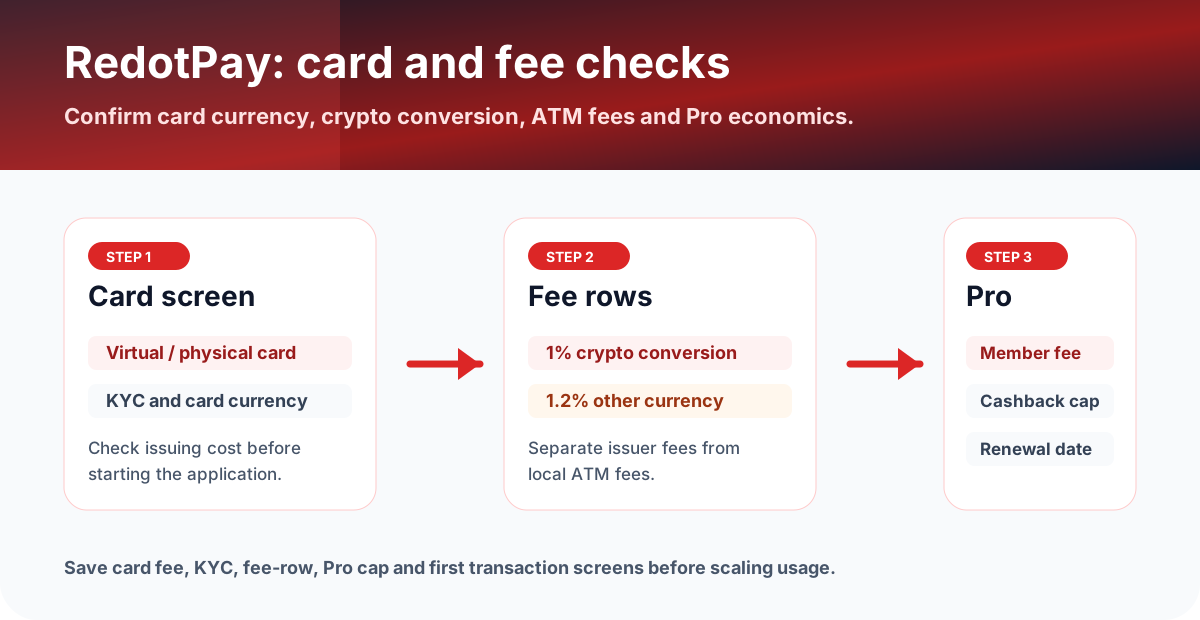
Narrow the cause in three minutes
Do not keep tapping the same Wallet button. Identify whether RedotPay has not prepared the card, Apple Wallet is rejecting the add flow, or the payment authorization fails after Wallet linking.
Select the exact card and look for Active, Upgrade, Add to Apple Wallet, and updated card details.
Verify device region, iOS, Face ID or Touch ID or passcode, Apple ID two-factor authentication, and OTP entry.
After Wallet linking, try a small transaction and separate balance, merchant acceptance, and RedotPay-side processing time.
Separate where the process stops
| Where it stops | Screen to inspect | Next check |
|---|---|---|
| Add to Apple Wallet is missing | RedotPay app, Card screen | App version, selected card, Upgrade prompt, card status, and region support |
| Wallet add fails | Apple Wallet and RedotPay verification screen | iOS, device region, passcode or biometrics, Apple ID 2FA, OTP expiry, and error text |
| Card is in Wallet but payment fails | Apple Wallet, RedotPay balance, Card screen | Balance, Active or frozen status, merchant acceptance, online authentication, and recent card upgrade |
Being in an Apple Pay supported country or region is not the same as having an eligible RedotPay card ready for Wallet. Treat Apple regional support, RedotPay card status, and merchant acceptance as three separate checks.
What to check in RedotPay before Apple Wallet
Background: after Apple reviewed Hong Kong card-issuing programs, RedotPay suspended new Apple Pay enablement from August 22, 2025. That notice (RedotPay's Response to Recent Apple Pay Service Adjustment, last updated July 21, 2026) is still published and says a card removed from Apple Pay cannot be added back. RedotPay's newer guide (How to Upgrade and Link Your Card to Apple Pay, updated July 26, 2026) says the free card upgrade makes cards Apple Pay-ready again. Checked October 1, 2026: do not remove a working card from Apple Wallet, and use the upgrade path if the card cannot be added.
RedotPay says a card upgrade can issue a new card number, CVV, and expiry date. If you already saved the old card on subscription services or merchants, update those saved card details separately from Apple Pay.
Wallet add fails: the practical order
- Open the RedotPay official app path and select the exact card in Card.
- Use Add to Apple Wallet from inside RedotPay when available before trying manual card entry.
- When entering OTP or verification codes, avoid expired codes, full-width characters, spaces, and repeated failed attempts.
- Save the Wallet error text, time, device model, iOS version, and RedotPay app version.
- If the same error repeats, contact RedotPay with the card status, device information, and screenshot evidence.
Added to Wallet but payment still fails
Wallet linking and payment authorization are separate. A card can sit in Apple Wallet while a transaction fails because of RedotPay balance, merchant acceptance, online authentication, a frozen card, an old saved card after upgrade, or temporary processing after linking.
| Failure point | Screen to inspect | Next action |
|---|---|---|
| In-store contactless payment | Apple Wallet, RedotPay Card, balance | Try a small purchase at a merchant that accepts Apple Pay or contactless card payments. |
| App or online payment | Checkout screen, authentication, billing address | Review billing details, extra authentication, and whether the merchant stored old card details. |
| Low balance | RedotPay balance and currency | Leave room for fees and currency conversion before testing again. |
| Card restriction | Active, freeze, limit, and security rows | Unfreeze the card if available, check limits, and ask support if the restriction is unclear. |
Card application fees and Apple Pay eligibility are separate
RedotPay's help center lists a 10 USD virtual card application fee and a 100 USD physical card application fee. Even if you plan to use Apple Pay only, confirm the current card fee, eligible region, card type, and account status inside the app before applying.
Records to save before contacting support
- RedotPay Card screen showing card status, Upgrade prompt, and Add to Apple Wallet availability.
- Apple Wallet error text, time, device model, and iOS version.
- RedotPay app version, device region, Apple ID two-factor authentication status, and OTP step.
- Failed payment merchant name, amount, currency, balance, and Wallet display.
- Support ticket number and any response from RedotPay.
Official sources, reader evidence, and small tests
Before acting on a card page, check the issuer app or official help page, then keep records that can be matched to dates, fees, card status, rewards, and region eligibility.
FAQ
How do I fix RedotPay Apple Pay not working?
Do the free card upgrade. RedotPay's help center (updated July 26, 2026) says some existing cards must be upgraded before they can use Apple Pay: update the RedotPay app to version 3.0.1 or later, open Card, tap Upgrade and follow the steps, then add the new card to Apple Wallet. The upgrade is free and issues a new card number, CVV and 3-year expiry date.
Why don't I see the Upgrade button in RedotPay?
RedotPay sends the upgrade notification to eligible users gradually. Keep the app updated to 3.0.1 or later and notifications on. If no Upgrade prompt appears, check whether Add to Apple Wallet is already available for the selected card and whether the card is Active.
Can RedotPay be added to Apple Pay?
Yes, after the free card upgrade where the app prompts for it. RedotPay suspended new Apple Pay additions from August 22, 2025 after Apple reviewed Hong Kong card programs; its newer help article says the upgraded card is Apple Pay-ready. The card still needs to be Active and the device and Apple ID must meet Apple Pay requirements.
I upgraded but still can't add RedotPay to Apple Wallet. What now?
Work through RedotPay's checklist: card set to Active in the app, latest iOS and RedotPay app 3.0.1 or later, Face ID, Touch ID or a passcode enabled, a device region that supports Apple Pay, two-factor authentication on your Apple ID, and correctly typed card details and OTP codes.
Why does payment fail after the RedotPay card is in Apple Wallet?
Common causes include low balance, frozen or inactive card status, merchant acceptance limits, online authentication failure, old card details saved at a merchant after the upgrade, or a short processing delay after linking.
Should I remove my RedotPay card from Apple Wallet and add it again?
No. RedotPay's Apple Pay notice says a card removed from Apple Pay cannot be added back. If a card already works in Wallet, leave it there.