
Tria Card can mention Apple Pay or Google Pay support, but Wallet setup still depends on supported country, issuer tokenization, active card status, KYC, device security, Wallet account region and app-side Add to Wallet availability. Fix those in order before assuming the card itself is unusable.
What Tria says about mobile wallets
Tria's card help center says users can link the card with Apple Pay or Google Pay where supported. The phrase "where supported" is important: Apple, Google, issuer and regional card rules all affect whether setup succeeds.
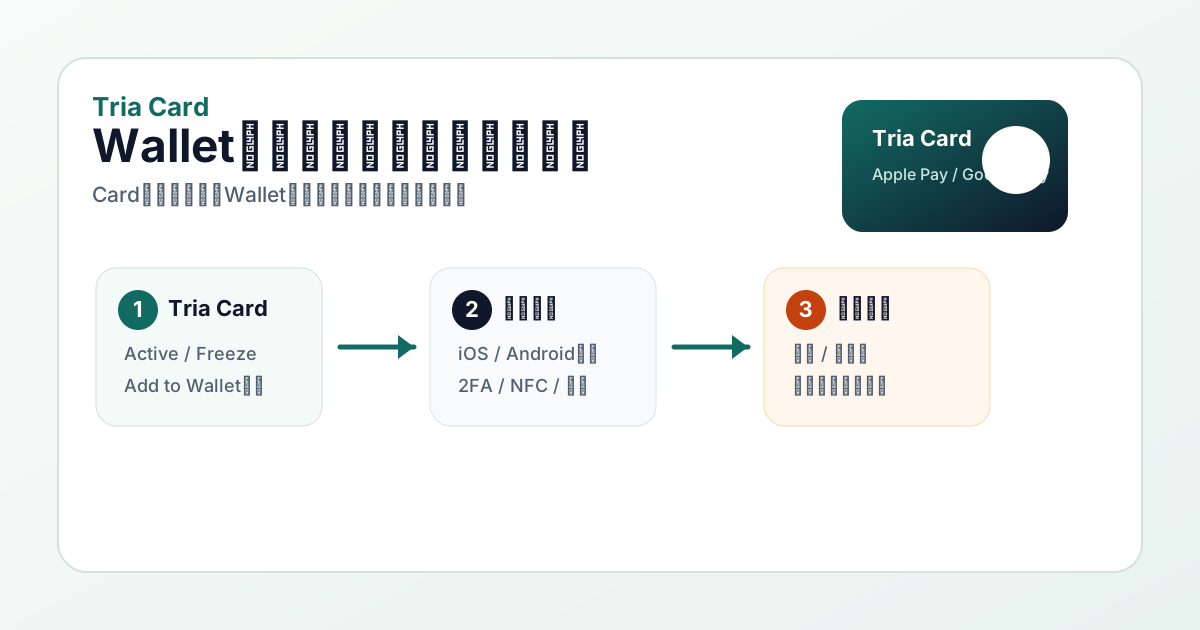
Common causes by error pattern
| Error pattern | Likely area | What to check |
|---|---|---|
| No Add to Wallet button | Tria app or card status | KYC, card issued, card tier, app version, region and support notice. |
| Card cannot be added | Issuer tokenization or Wallet region | Apple Pay or Google Wallet supported country, issuer support, account region and billing address. |
| Verification fails | Identity or issuer review | KYC status, phone/email verification, card status and support message. |
| Added but payment declines | Card balance, merchant or transaction type | Spendable balance, prohibited categories, merchant acceptance, currency and card limits. |
| Works online, fails in store | NFC or terminal | NFC, default card, device lock, terminal contactless support and physical-card fallback. |
Apple Pay checks
Apple publishes supported countries and regions for Apple Pay. A country being on Apple's list does not guarantee every issuer card can be tokenized, but an unsupported Wallet region can stop setup before Tria support can help.
- Check that your iPhone, Apple Watch or Mac supports Apple Pay and has passcode, Face ID or Touch ID enabled.
- Confirm the Apple ID region and Wallet country are compatible with Apple Pay.
- Open Tria Card and look for an official Add to Apple Wallet button instead of typing card data from an unofficial source.
- If Wallet shows "Could Not Add Card" or similar wording, save the exact message and time.
- After successful setup, test one small contactless or online payment and save the final card history.
Google Pay and Google Wallet checks
Google's Wallet help says contactless payments depend on supported countries and supported payment methods. Device support, account country and issuer tokenization can all matter.
- Check Google Wallet availability and contactless payment support for your country.
- Confirm NFC, screen lock, Play Services and Google Wallet are up to date.
- Open Tria Card and use the official Google Wallet route shown by the app.
- Save any "card not supported", verification or country-related error message.
- Run a small payment and compare Wallet history with Tria Card history.
After adding the card: run a small payment test
Check authorization, final posting, currency, fee row, card balance and cashback eligibility.
Keep the terminal receipt, Wallet transaction, Tria statement and any decline message.
Multiple failed tokenization attempts can create account or issuer review. Prepare evidence and contact support.
Support packet to prepare
- Card screen showing tier, card status, KYC status and Add to Wallet button or missing button.
- Apple Pay or Google Wallet error screenshot with date and time.
- Device model, OS version, Wallet app version, country, account region and phone number country.
- Billing address format, physical card status if relevant and whether a small direct card payment works.
- Any successful or failed payment receipt, merchant type, amount, currency and card statement row.
FAQ
Why is Tria Card not adding to Apple Pay or Google Pay?
Possible causes include unsupported country or region, incomplete KYC, inactive card, issuer tokenization restriction, missing Add to Wallet button, device or Wallet settings, Apple ID or Google account region, card-tier limitation, network issue or temporary issuer outage.
Does Tria officially mention Apple Pay and Google Pay?
Tria's card help center says users can link the card with Apple Pay or Google Pay where supported. Availability can still vary by region, issuer, card status and device.
What should I check before retrying Wallet setup?
Check KYC status, card issue status, card tier, country, supported Wallet country, device lock, NFC, app version, Add to Wallet button, billing address, card balance and any error message.
What should I save before contacting support?
Save the Card screen, Add to Wallet button or missing button, Wallet error, device model, OS version, country, KYC status, card tier, billing address format, time of attempt and support ticket ID.
Official sources checked
Mobile-wallet support can change by Apple, Google, issuer, device, country and card program. Check the live app before retrying.