
If a Tria deposit is not received, do not repeat the same transfer at a larger size. Match the deposit screen, source withdrawal, TXID, chain explorer, wallet balance and card balance. The most expensive mistake is using a token or network that looks similar but is not the route shown inside Tria.
First checks after a missing deposit
Use the original deposit screen and the sending wallet or exchange withdrawal screen side by side. Do not rely on token symbols alone; token contract and network matter.
Network and token mismatch checks
Tria's documentation lists multiple supported networks for its SDKs, and the cashback terms refer to supported blockchains for stablecoin delivery such as Ethereum, Polygon, Optimism and Arbitrum. A general supported-network list does not guarantee every token is accepted for every deposit route inside the card app. Use the deposit screen shown at the moment of transfer.
Tria's Card Top Up Guide (updated July 10, 2026; checked October 19, 2026) lists Bitcoin, Ethereum, Polygon, Base, Arbitrum, Optimism, BNB Smart Chain, Aptos and Solana for card top-ups and says Avalanche is not supported. The minimum is 50 USD for BTC and 10 USD for other tokens. Solana top-ups accept tokens such as USDC or USDT on Solana but not native SOL, and need SOL for gas, because gasless deposits are not supported on Solana; the guide also says the TRON network fee has to be covered in TRX. Top-ups are usually instant, but the guide says congestion can delay them by 2 to 4 hours, so wait that long before treating a deposit as missing.
| Problem | How it looks | What to verify |
|---|---|---|
| Wrong network | TXID succeeds on-chain, but the Tria app does not show the deposit. | Network on Tria Deposit screen vs network chosen in source wallet. |
| Wrong token contract | Symbol matches, but token contract differs from the expected asset. | Contract address on explorer and Tria asset row. |
| Below minimum | Explorer shows transfer, but app waits or ignores the amount. | Minimum deposit amount and fee deducted by source platform. |
| Pending confirmations | Source says sent, but explorer or app still waits. | Confirmation count and Tria app history after enough time has passed. |
| Card balance not updated | Wallet receives funds, but card cannot spend yet. | Separate conversion, spendable balance, card-linking or settlement step. |
Wallet balance and card balance are separate checks
Tria's card help center explains that Tria connects wallet balances to card spending and converts assets at payment time. In practice, users should still check whether the asset is visible in Wallet, whether it is eligible for spending, and whether the Card screen shows spendable balance or card status.
Check whether the token is spendable, whether conversion preview is available, and whether your card is active.
Check card status, merchant type, prohibited use, collateral/spend limit, currency conversion and issuer decline details.
Check whether the transaction is eligible, posted, refunded, cash-like, P2P, account-funding, gaming or gambling.
Before the next top-up: pitfalls and a worked check
From Tria's Top Up Guide, Provider Fees article and sign-up help, re-read on October 19, 2026.
- Check you are in the right account first. Tria says that if you log in and see a zero balance, you may be signed in with a different Google or Apple email, which creates a brand-new account instead of opening the old one. This looks exactly like a lost deposit.
- Pick the cheapest route, then read the Provider Fee. The provider fee is charged by the networks and liquidity providers that swap, route or bridge your asset, and varies with congestion and liquidity. Tria recommends USDC or USDT on Optimism, Arbitrum, Base or Polygon for the lowest fee, and says to review the final Provider Fee in the app before confirming.
- Expect the maximum to be trimmed. The largest top-up you can enter may be adjusted slightly so the transaction can complete end to end. Do not top up to the exact amount of a planned purchase.
- Do not send native SOL. Solana top-ups take tokens such as USDC or USDT on Solana; convert SOL first, and keep some SOL for gas.
- Refund money stays on the card. A merchant refund can only be spent with the card, not withdrawn.
- Wait before you resend. Give it 2 to 4 hours during congestion and log out and back in before treating funds as missing. A second transfer of the same amount only doubles what you have to trace.
Divide the amount sent by the amount credited. In this site's own measurement (April to May 2026 statements), a 400,000 JPYC top-up via Polygon credited 2,510.51 USD: 400,000 ÷ 2,510.51 ≈ 159.33 JPY per USD. Compare the result with a reference rate for the same day to see your all-in conversion cost.
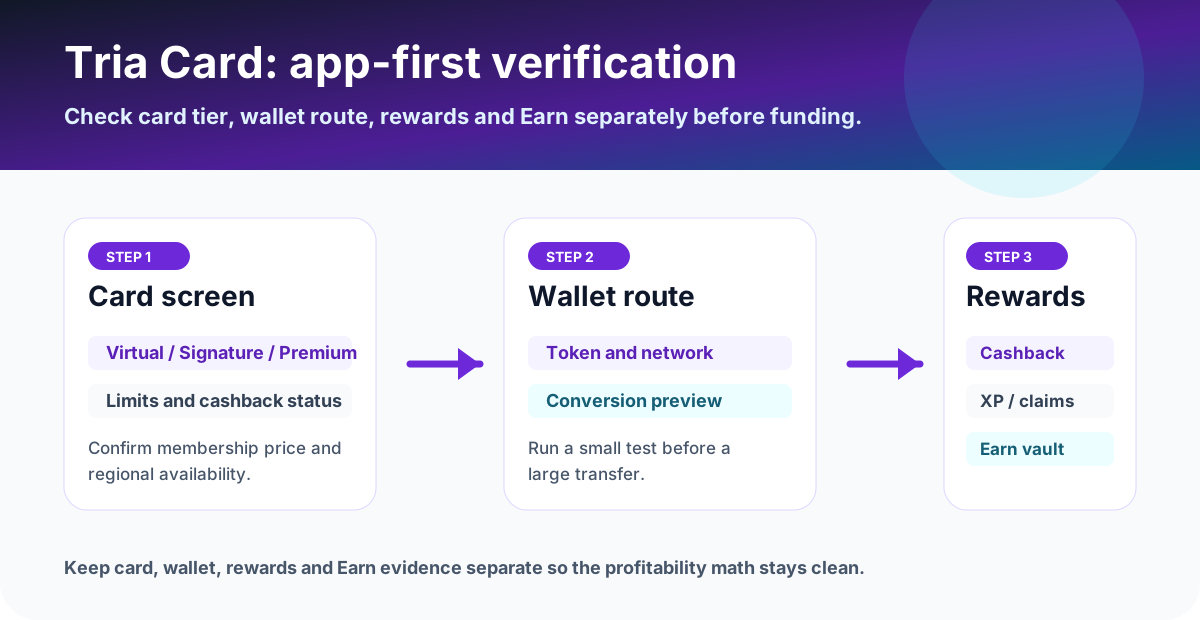
Then balance status (refund or hold), and only then support. The diagram above follows the same order.
Screenshot the Review step before you swipe, including token, network, amount and Provider Fee, plus the TXID afterwards.
The JPYC measurement is detailed, in Japanese, in Tria card JPYC top-up via Polygon.
Support packet to prepare
Support can move faster when the evidence is complete. Send one clean packet instead of partial screenshots.
- Tria Deposit screen showing asset, network, address, memo or tag if any, and date.
- Source wallet or exchange withdrawal screen showing asset, network, amount, fee and destination address.
- TXID, explorer link, confirmation count, success or failure status and token contract.
- Tria Wallet balance screen, Card balance screen and transaction history after waiting.
- The top-up Review screen with token, network, amount and Provider Fee.
- Any error message, support ticket ID, country, KYC status and card tier.
Prevent the next failed deposit
Use the smallest practical test before scaling
A small deposit gives you an address, network, timing and spendability test before meaningful funds are at risk.
Use the current Deposit screen, not an old saved address.
Confirm the network and token contract before signing or withdrawing.
Confirm Wallet, Card balance and a small eligible payment before sending more.
FAQ
What should I check first if a Tria deposit is not received?
Check the exact token, network, deposit address, memo or tag if any, TXID, blockchain confirmation status, source-wallet withdrawal status, Tria wallet balance and Tria card balance. Do not send a second large transfer until the first one is explained.
Can a supported token still fail to appear?
Yes. A token can be supported on one network but not another, or the app may require a specific deposit route, contract, minimum amount or confirmation count. The deposit screen shown before transfer is the source of truth.
What is the difference between wallet balance and card balance?
Wallet balance shows assets received or held in the app. Card balance or spendable balance can require a separate conversion, settlement or card-linking step. Check both screens before assuming a deposit can be spent.
What should I send to support?
Send the deposit screen, sending wallet or exchange withdrawal screen, TXID, token, network, address, amount, timestamp, explorer link, wallet balance screen, card balance screen and any error message.
Why does my Tria balance show money I cannot spend or withdraw?
Tria's Top Up Guide gives two usual reasons: a merchant refund that Visa is still processing, which can only be spent with the card and not withdrawn, and a pre-authorization from a hotel, car rental or fuel pump that stays blocked until the final amount is confirmed.
My Tria account shows a zero balance after logging in. Is my deposit lost?
Check the login first. Tria says that signing in with a different Google or Apple email creates a brand-new account rather than opening your old one, so a zero balance can simply mean you are in the wrong account. Sign out and sign in with the email you originally used.
Official sources checked
Network support and app deposit routes can change. Use the app's live Deposit screen before any transfer.